
Requirements
How to add testers in Google Play Console: email lists, CSV, Google Groups, and the opt-in link
Three ways to add testers to a Play Console closed test (typing emails, uploading a CSV, or Google Groups) and the steps from saving the list to sharing the opt-in link. We cover common CSV format problems, cases where people on the list don't count, and what to check when testers can't join.
Last checked Oct 14, 2026.
1. Where to add them
To add closed testing testers, go to Test and release → Testing → Closed testing in the left menu, click Manage track on the track you’re using, and open the Testers tab. There are three ways to add them.
- Email lists — enter your testers’ Google account emails directly, or upload them all at once as a CSV file. This is the most common method.
- Google Groups — enter a single group address, and anyone who joins that group can take part.
- Organizations — add testers by your company’s Google Workspace organization. Solo developers rarely use this.
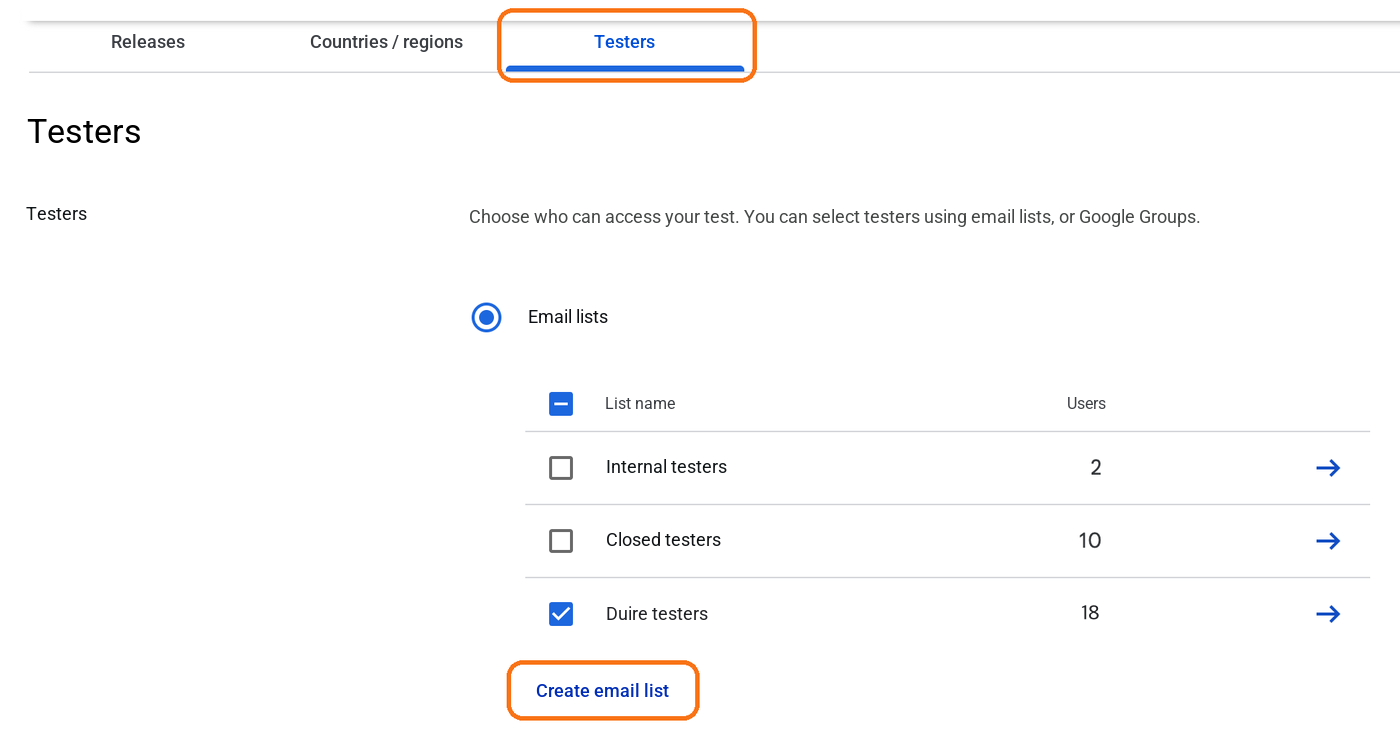
2. Adding testers with an email list
- On the Testers tab, with Email lists selected, click Create email list.
- Enter a name that’s easy to recognize under List name.
- Paste the emails, separated by commas, into the Add email addresses field and press Enter, or upload a file with Upload CSV file. Check that Email addresses added shows the number you entered, then click Save changes.
- Make sure the list you just created is checked in the list table, then click Save at the very bottom of the page.
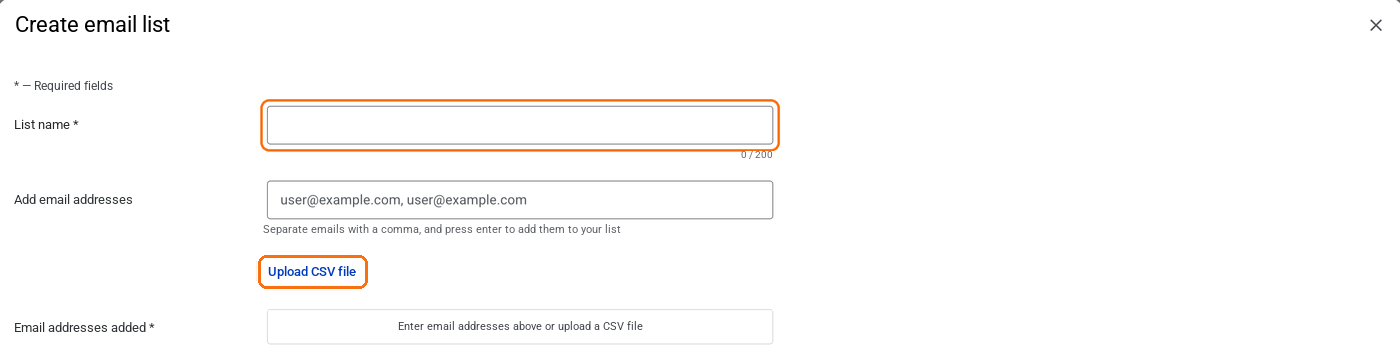
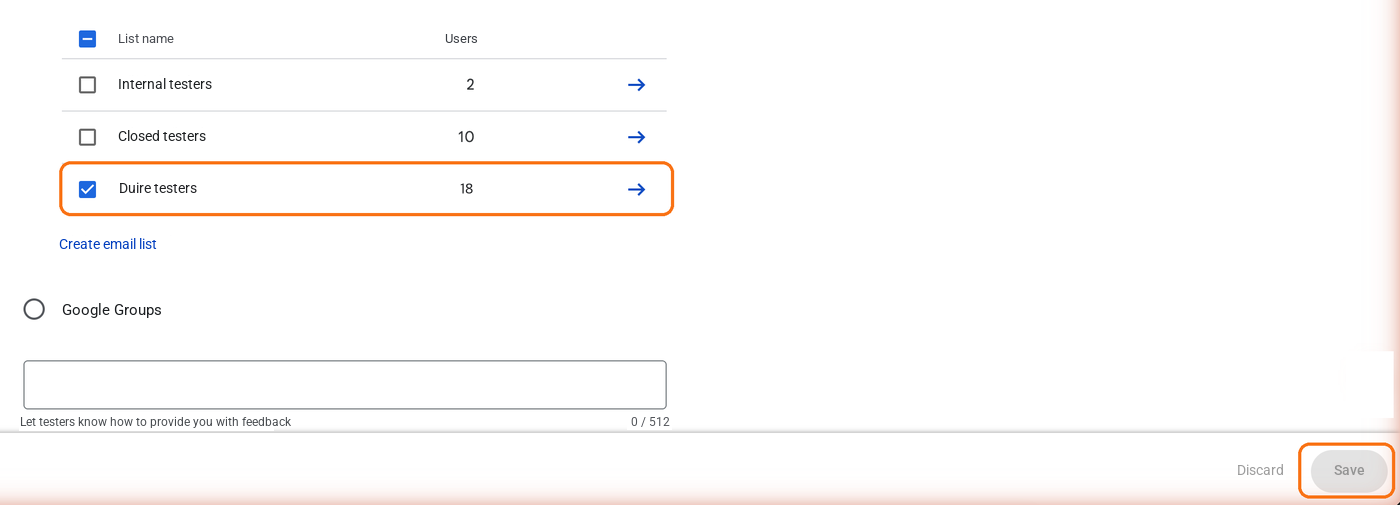
Each email must be the Google account the tester is signed in with on the Play Store. If a tester uses a different account on the Play Store, the app won’t show up for them even if they’re on the list.
3. CSV file format
The CSV is a text file containing only email addresses. The format in Google’s documentation is simple.
- One email per line. No commas, names, or header row.
- UTF-8 with a BOM isn't accepted. Saving as 'CSV UTF-8' in Excel adds a BOM, so save it without a BOM in Notepad or another text editor.
- Uploading a CSV overwrites the addresses already in that list. To add more, upload a file with every address, or type just the new ones into the input field.
4. Adding testers with Google Groups
Choose Google Groups and enter the group address (name@googlegroups.com). According to Google’s documentation, only members of that group can join the test, so testers join the group first and then come in through the opt-in link.
With email lists, every time someone new joins you have to edit the list, save it, and send it for review; with Groups, people just join the group. That’s why tester swap groups, where developers trade testers, use this method a lot (closed testing tester swaps).
5. Sharing the opt-in link after saving
- Send your changes for review from Publishing overview in the left menu. Tester list changes go through review too.
- Once review is done and your app’s status is Published, the opt-in links (Join on Android · Join on the web) appear at the bottom of the Testers tab. According to Google’s documentation, they don’t show up while the status is ‘Draft’ or ‘Pending publication’.
- Send the link to your testers. Each tester opens it with the account you added to the list, accepts the invitation, and installs the app from the Play Store.
Apps in testing don’t appear in Play Store search. You have to send testers the opt-in link or the app’s Play Store URL directly. If review is taking a long time, see when closed testing is stuck in review for what to check.
6. When testers can't join
- They opened it with a different account. If the browser or Play Store they opened the link in is signed in with a Google account that isn’t on the list, they can’t join. If they have several accounts on their phone, have them switch the Play Store to the account on the list.
- It’s still in review. Until the app is published, there’s no link and nothing can be installed.
- Their country isn’t included. If the track’s Countries / regions tab doesn’t include the tester’s country, they can’t install it.
- They haven’t joined the group. If you added testers with Google Groups, they have to be members of the group.
For how the 14 days are counted after testers join, see when do the 14 days start?, and if your screen looks different, also check Play Console Help: Set up an open, closed, or internal test.
Frequently asked questions
- If I put 12 emails on the list, does that meet the tester count?
- No. Being on the list alone doesn't count. Each tester has to opt in through the opt-in link to be counted, and that tester's 14 days start from then.
- I uploaded a CSV and got an error, or the addresses came in garbled.
- According to Google's documentation, a CSV should have one email per line with no commas. UTF-8 files with a BOM aren't accepted, so if you saved it from Excel, save it again as UTF-8 without a BOM.
- I uploaded a CSV again and my old addresses disappeared.
- Uploading a CSV overwrites the existing addresses in that list. To add testers, type just the new addresses into the Add email addresses field, or upload a CSV that contains every address.
- I changed my tester list but it isn't taking effect.
- Tester list changes also go through review. Send them for review from Publishing overview and wait until they disappear from Changes in review.
- How many testers can I add?
- According to Google's documentation, you can create up to 200 email lists, each with up to 2,000 people, and attach up to 50 lists to a single track. Internal testing is limited to 100 testers per app.
Meet the requirement without recruiting testers
DUIRE joins your closed test with real Android devices and opens your app every day for 14 days. Registering your app and checking installability are free.