
Requirements
Google Play closed testing requirements: 12 testers, 14 days
To release an app on Google Play from a personal developer account, you must first run a closed test with at least 12 testers opted in for 14 days in a row. This guide covers who it applies to, how to create a track and add testers in Play Console, how the 14 days are counted, applying for production access and common rejections, and ways to find testers.
Last checked Oct 13, 2026.
1. Who has to do this
Personal Google Play Console accounts created after November 13, 2023. To release an app on the Play Store for the first time from one of these accounts, you have to run a closed test before you can open the production track.
Organization accounts and personal accounts created before that date aren’t subject to this requirement. You can tell whether your account is by checking whether your Play Console dashboard shows progress toward the closed testing requirement. For the details, see when you don’t need closed testing.
2. The requirement: 12 testers, 14 days in a row
- At least 12 testers must join your closed testing track.
- Those testers must stay opted in for 14 days. If a tester opts out partway through, that tester has to start the 14 days over.
- Once you meet the requirement, you can apply for production access from your Play Console dashboard.
The tester count started at 20 and was later lowered to 12 (12 or 20 testers?). And only closed testing counts toward the requirement, so people in internal or open testing don’t count (internal vs. closed vs. open testing).
3. Setting it up in Play Console
To start a closed test in Play Console, you add testers to a track, upload a release, and once review is done, send out the opt-in link. Menu and button names below follow the English Play Console.
1) Finish setting up your app
Google’s documentation says you need to complete your app setup before you can use closed testing. Fill in the app setup tasks on your app’s dashboard (privacy policy, content rating, target audience, data safety, and so on) and your store listing first.
2) Open your closed testing track
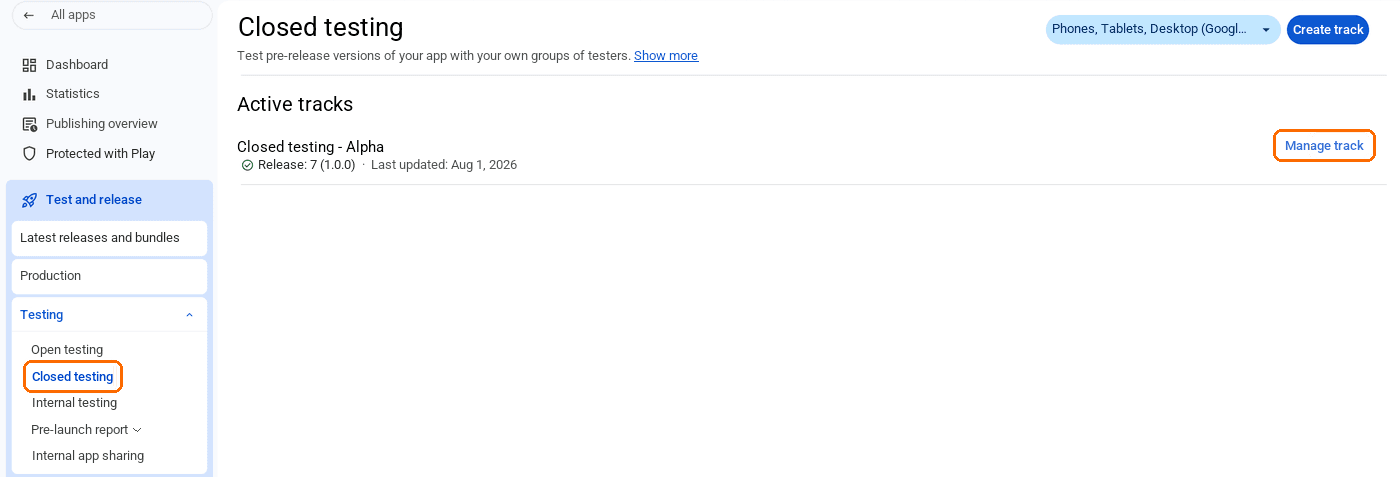
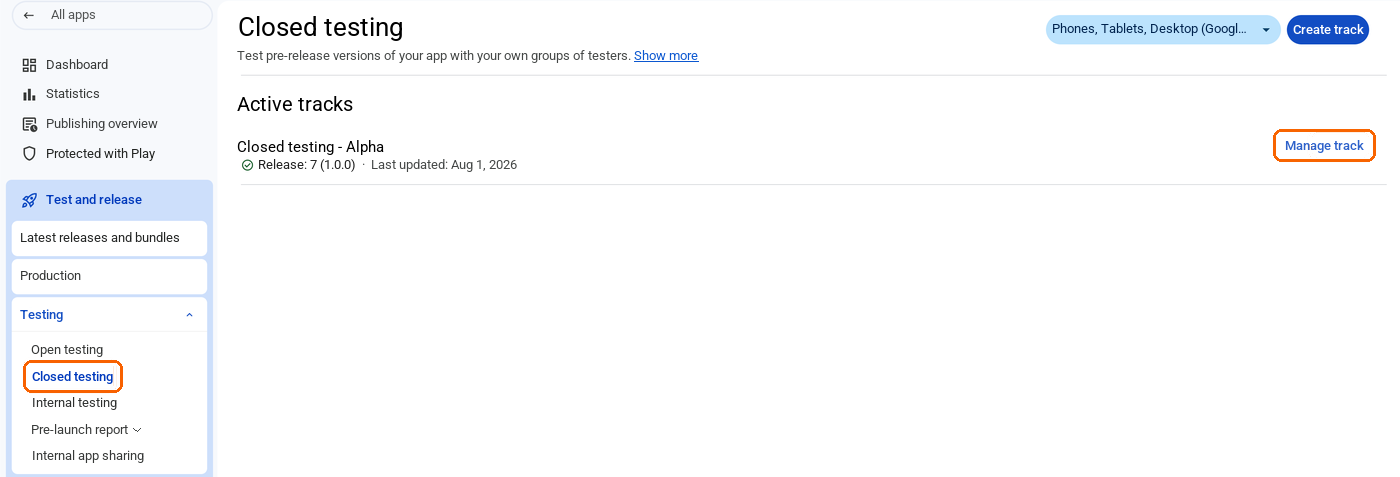
In the left menu, go to Test and release → Testing → Closed testing. You can use the default ‘Closed testing - Alpha’ track as is, or create a new one with Create track in the top right. Click Manage track on the track you want to use.
3) Choose countries / regions
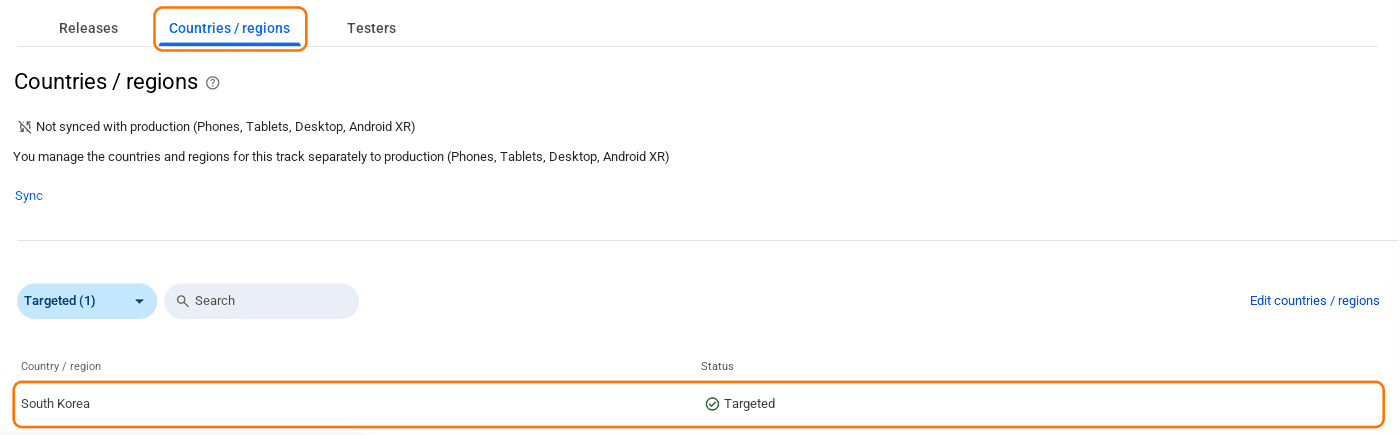
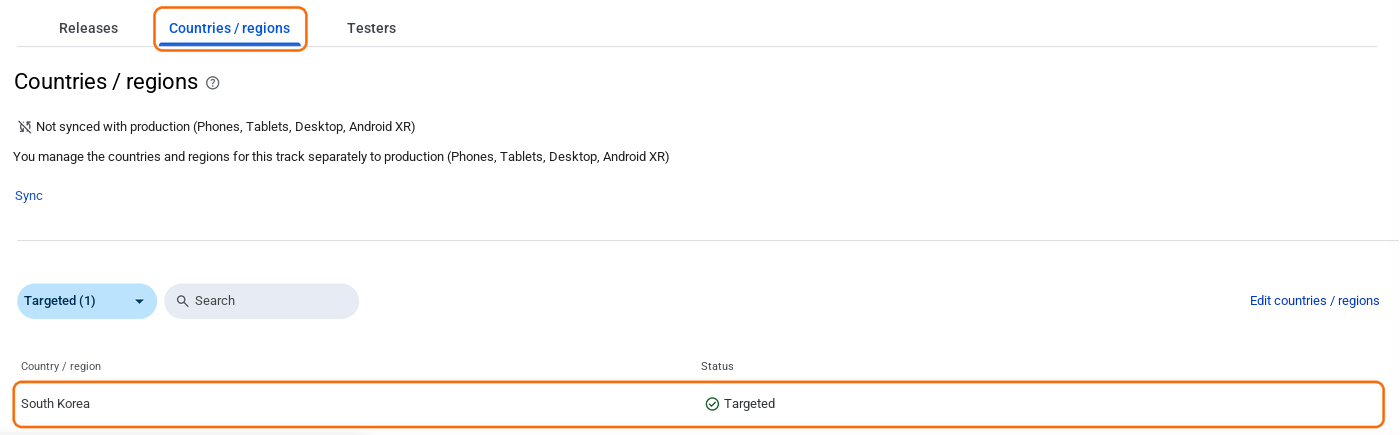
On the Countries / regions tab, check that the countries where your testers live are included. If not, add them with Edit countries / regions. Testers in countries that aren’t on this list can’t install your app.
4) Add your testers
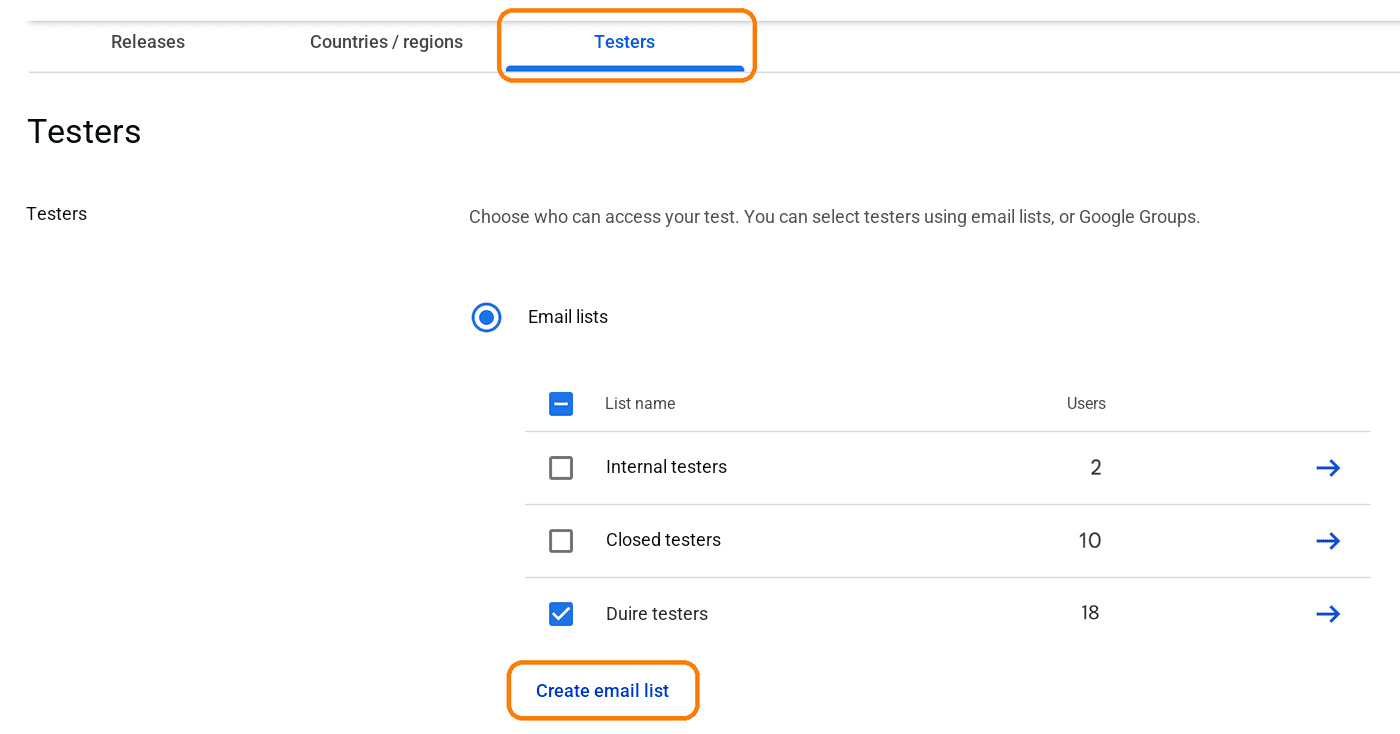
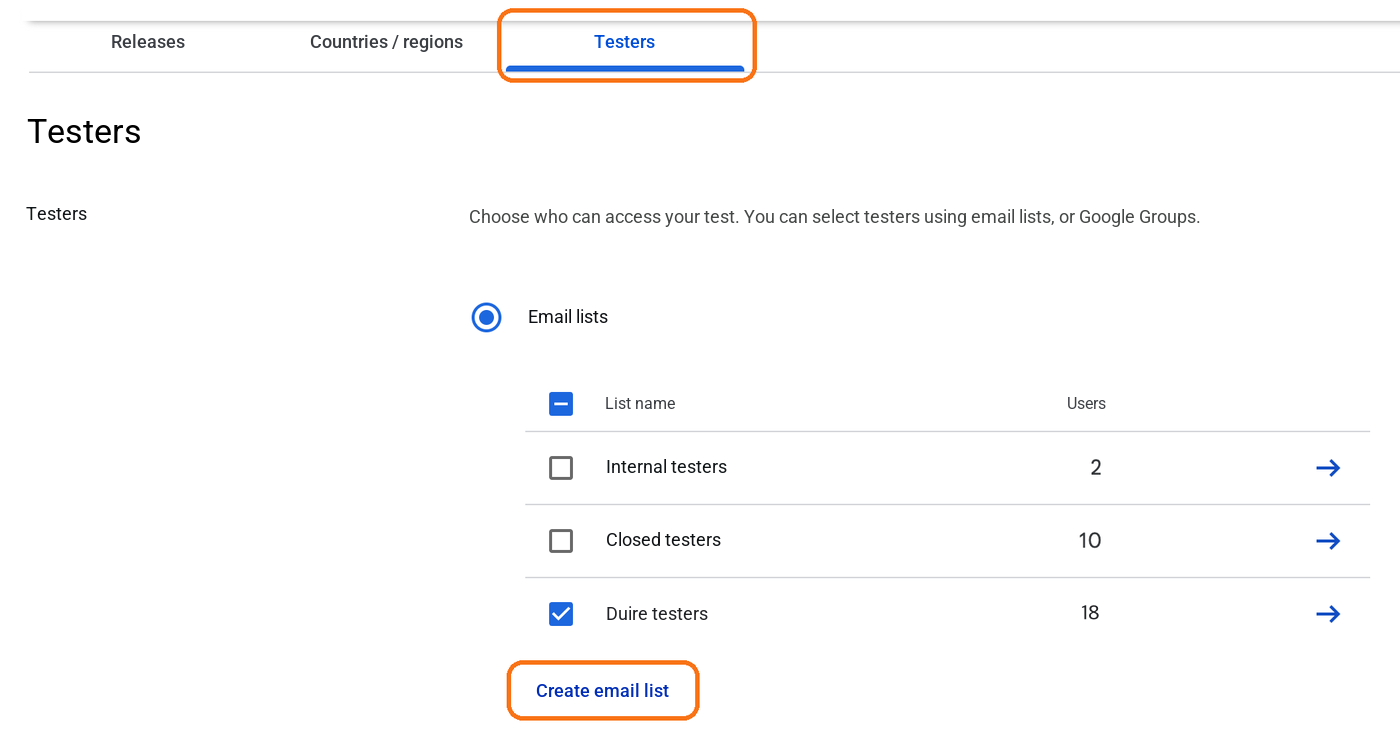
On the Testers tab, click Create email list, enter a list name and your testers’ Google account emails, then click Save changes. Make sure the new list is checked, then click Save at the bottom of the page. Each email must be the account the tester is signed in with on the Play Store. You can also use Google Groups instead of email lists.
5) Upload a release
On the Releases tab, create a new release, upload your App Bundle (.aab), add a release name and release notes, and save. To learn how to ship more versions during the test, see updating your app during closed testing.
6) Send it for review and wait
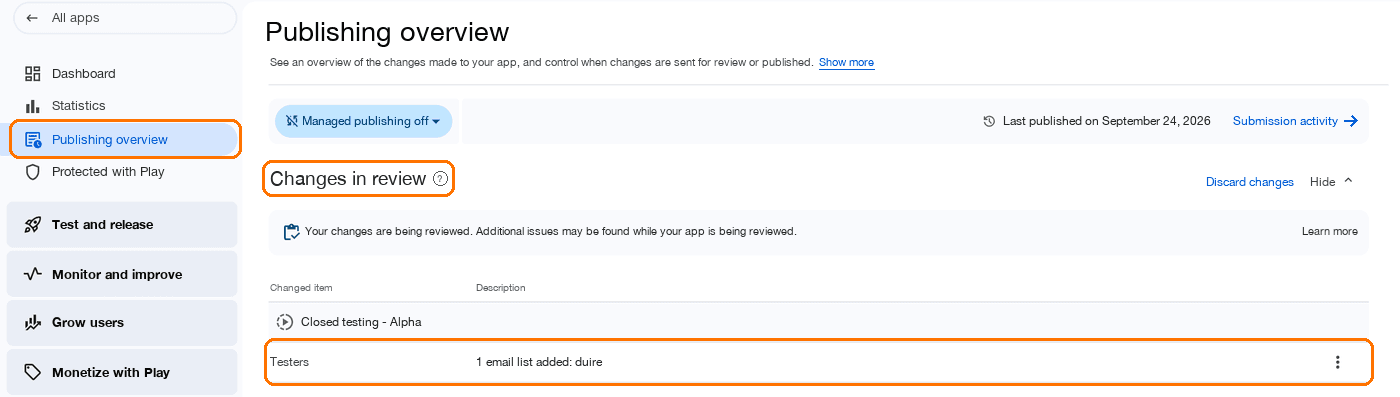
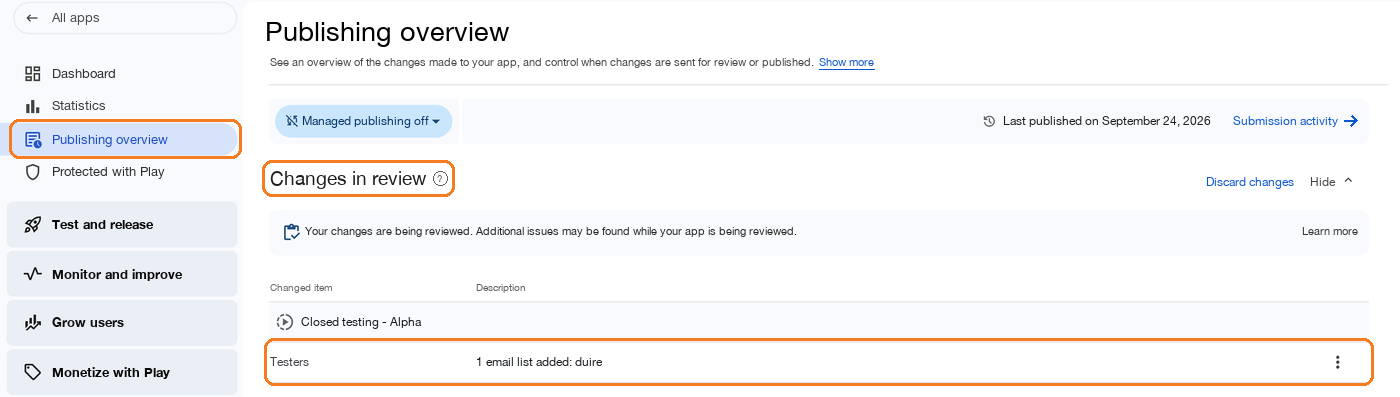
From Publishing overview in the left menu, send your changes for review. If you skip this step, your changes are only saved, not applied. Changes to the tester list go through review too. Once they disappear from Changes in review, they’re live. For a brand-new app this can take a few days. If it’s taking a long time, see when closed testing is stuck in review.
7) Share the opt-in link
The opt-in links (Join on Android · Join on the web) appear at the bottom of the Testers tab. According to Google’s documentation, the link only shows up once your app’s status is ‘Published’. Send it to your testers: they accept the invitation and install the app from the Play Store. That tester’s 14 days start counting from that moment.
4. How the 14 days are counted
The 14 days don’t start when you create the track — they start on the day each tester opts in. So if testers join over several days, you meet the requirement on the day the 12th tester to join completes 14 days. Days are counted in 24-hour periods, not calendar dates: a full 14 days have to pass from the moment you reached 12 testers.
- The fastest route is to line up at least 12 testers first and have them all opt in at once.
- It's safer to have a few extra testers so you stay at 12 even if one or two drop out. Anyone you add as a replacement starts their own 14 days from scratch.
- Whether someone counts depends on whether they accepted through the opt-in link. But Google's review also looks at whether the app was actually used, so have testers install it and try it out.
When the count starts, what breaks it, and why the numbers in Play Console show up late are covered in when do the 14 days start?
5. Applying for production access
Once you meet the requirement, you fill out a questionnaire under Apply for production on your dashboard. It has three parts.
- About your closed test: how easy it was to recruit testers, whether testers used your app’s features and used them as expected, and a summary of the feedback you received
- About your app: your target audience, the value your app provides, and expected installs in the first year
- Your production readiness: what you changed after the closed test, and why you believe the app is ready for release
Review usually finishes within 7 days but can take longer. Answer the questionnaire truthfully — making up feedback or user experiences that didn’t happen can count against your account. For what to write for each question, see production access questionnaire examples. For the steps and how long it takes to get a decision, see how to apply for production access.
6. When requests get rejected
There are two common reasons Google sends a request back saying “your app requires more testing.”
- Fewer than 12 testers opted in
- Testers didn't use the app enough during the test
In that case, keep the closed test running and apply again. If you ship a few new versions during the test, you’ll have something concrete for the questionnaire’s “what did you change after testing” question. For fixes by reason, see 7 reasons production access gets rejected, and if you were rejected with “testers were not engaged with your app,” see the testers-not-engaged rejection.
7. Ways to find testers
- Friends and family: it costs nothing, but finding 12 people with Android phones and keeping them opted in for 14 days is harder than it sounds.
- Tester swaps in developer communities: developers test each other’s apps. It’s easy to get numbers, but when someone drops out midway, your 14 days get longer again.
- Paid testing services: you pay someone to provide testers. Before choosing one, check whether they join with real devices, open your app every day, and keep records.
DUIRE is the third option. Real Android devices join your closed test, open your app at set times every day for 14 days, and pick up and install new versions. Before you pay, we first check that our devices can install your app from the Play Store.
For the cost and dropout risk of each option, see ways to find 12 testers compared, and for what to watch out for with swaps, see closed testing tester swaps.
8. Checklist before you start
- Have you created a closed testing track in Play Console, uploaded an app bundle, and passed review?
- Have you added your tester list (emails) to the track?
- Do the track's countries / regions include the countries where your testers are?
- Have at least 12 testers accepted through the opt-in link, and have you told them to stay in for 14 days?
- Do you have a plan for updates to ship during the test?
You can read the original at Play Console Help: App testing requirements for new personal developer accounts. Policies can change, so check it once more before you apply.
Frequently asked questions
- I can't find the opt-in link for my closed test.
- According to Google's documentation, the opt-in link only appears when your app's status is 'Published' — it isn't shown while the status is 'Draft' or 'Pending publication'. First check in Publishing overview that the review of the release on your closed testing track has finished.
- Does adding 12 people to internal testing meet the requirement?
- No. Only closed testing counts toward the requirement. Internal testing is optional, and even if you run 12 people through internal testing for 14 days, you still can't apply for production access.
- I've seen posts saying you need 20 testers. Which is it?
- 20 was the number when the requirement was first introduced. Play Console and the Help Center now say 12. Posts written before December 2024 still mention 20.
- Is it enough for testers to just install the app?
- Whether you can apply for production access depends on 12 opted-in testers staying in for 14 days in a row. But when Google reviews your request, it also looks at whether testers actually used the app, and if engagement is too low it sends you back for more testing. It's safer to have testers install the app and actually use it.
- Can I remove testers as soon as the 14 days are up?
- When you apply, at least 12 testers must have been opted in continuously for the last 14 days, so don't remove them before you apply. If Google asks for more testing after you apply, you'll have to keep going, so it's safest to keep them until you get a decision.
- Does closed testing work the same way for paid apps?
- The process is the same. However, according to Google's documentation, closed testing testers have to buy a paid app to install it. Only internal testers can install it for free.
Meet the requirement without recruiting testers
DUIRE joins your closed test with real Android devices and opens your app every day for 14 days. Registering your app and checking installability are free.